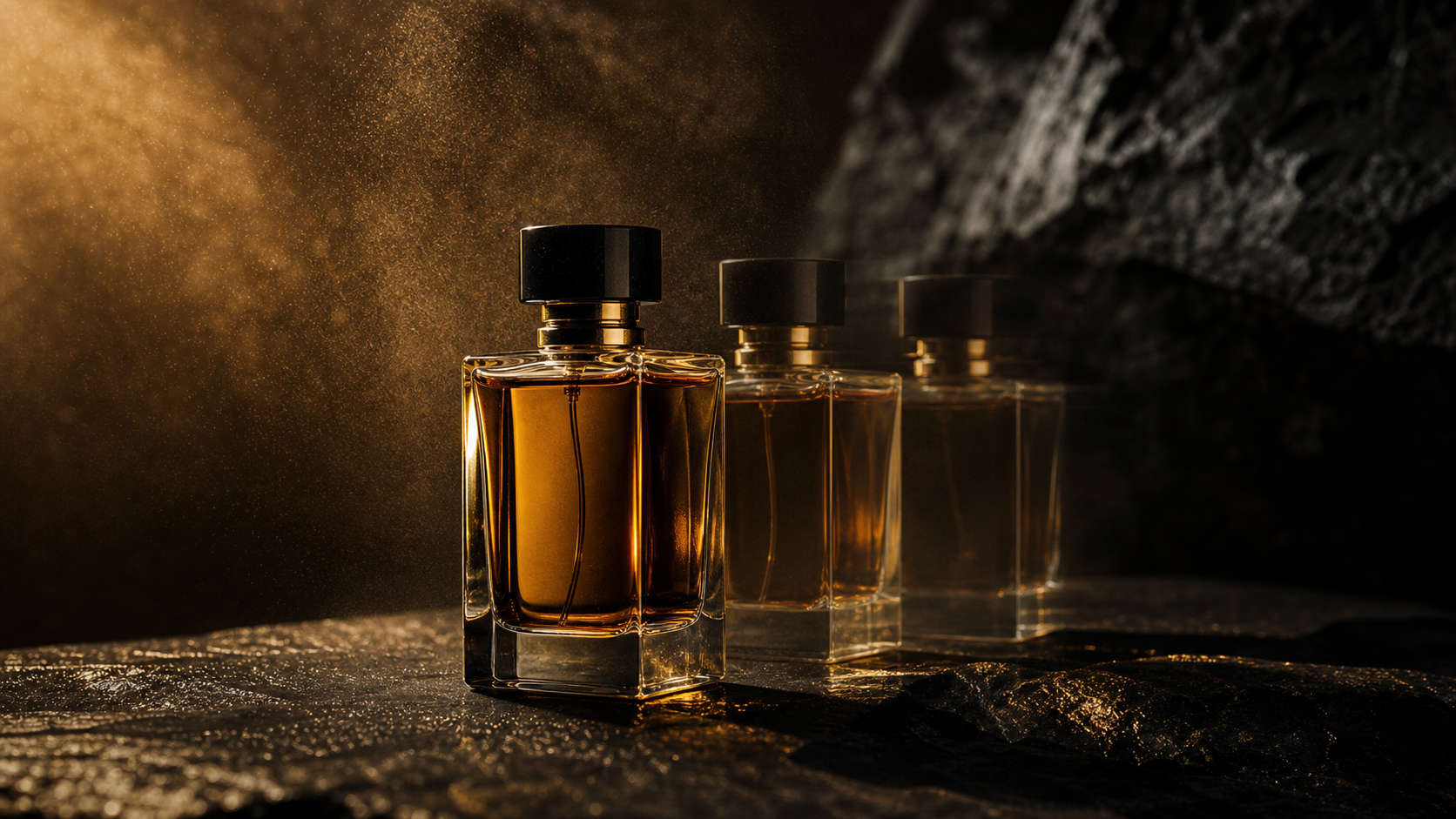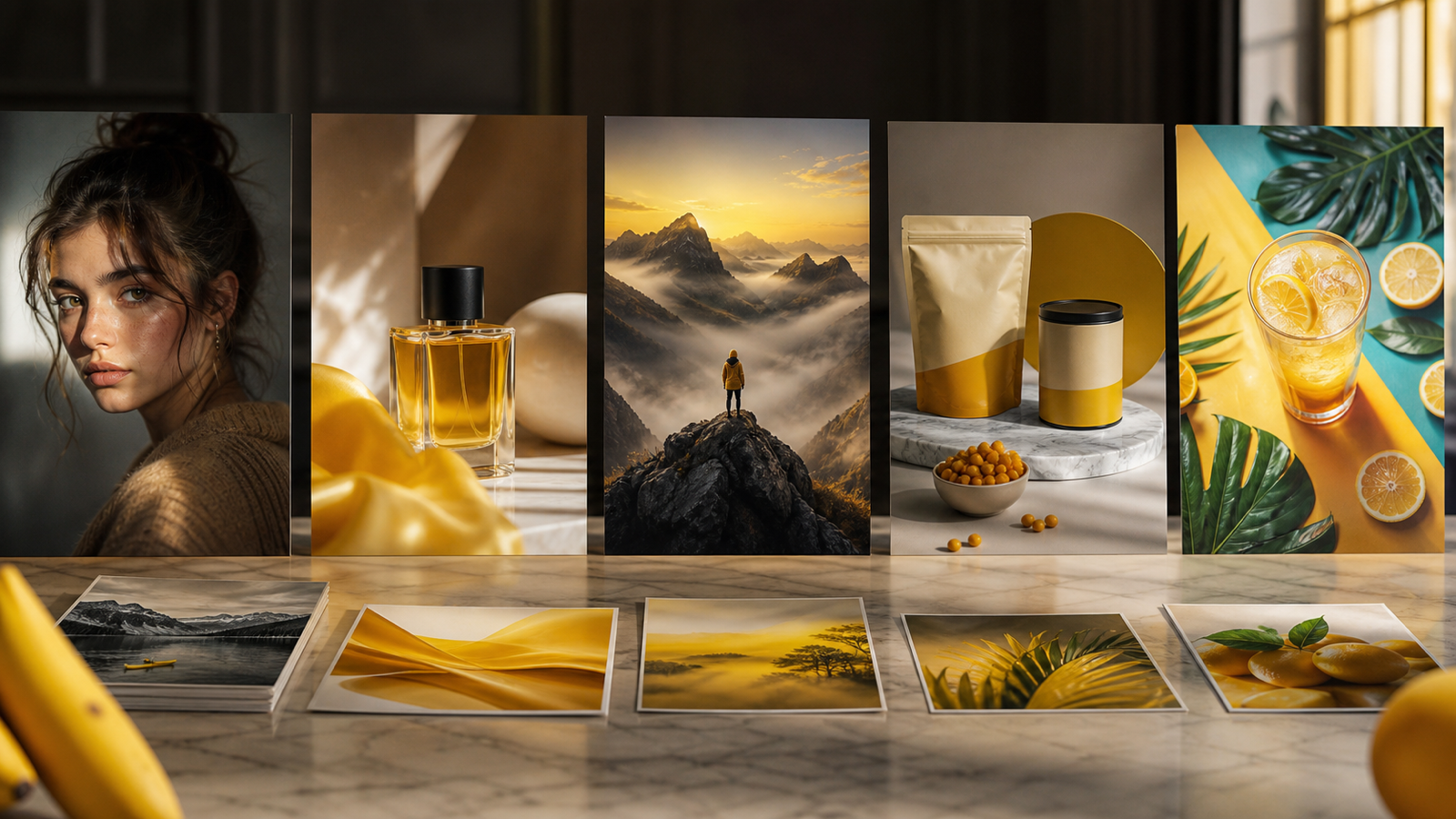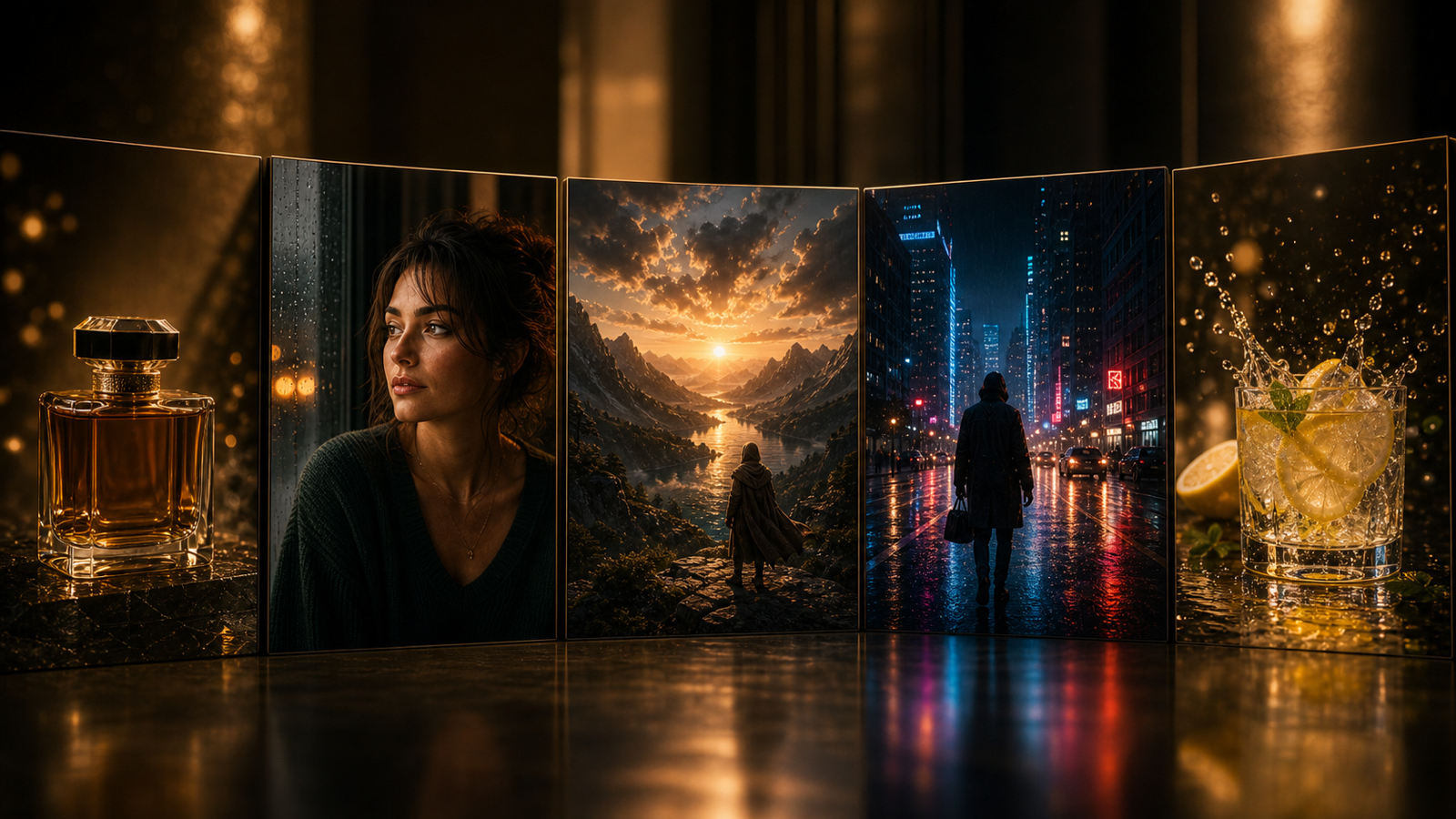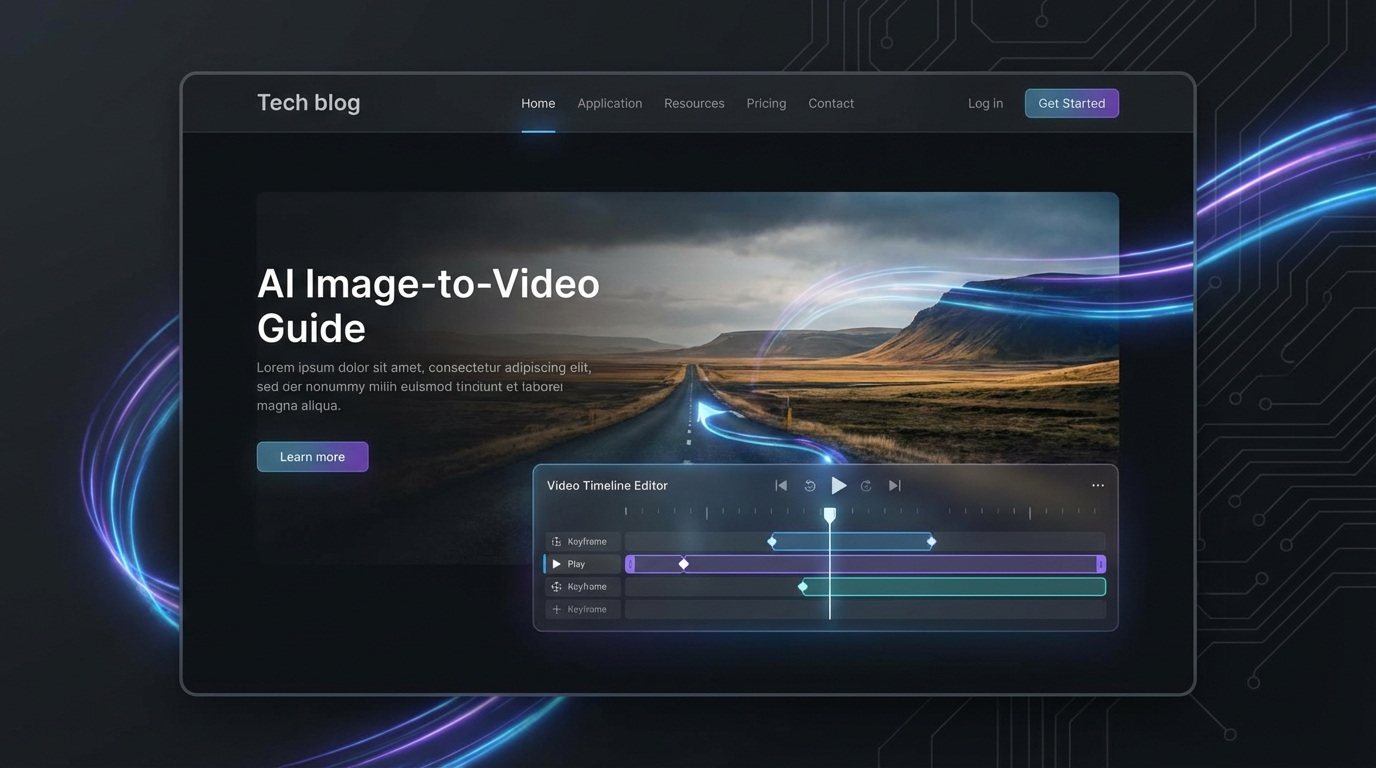
If you’ve ever generated a great image and immediately wished it could move, you’re not alone. Image-to-video tools are popular because they let you take a single still frame and add believable motion—camera drift, fabric flutter, neon flicker, rain, subtle facial movement—without learning video editing.
In this guide, you’ll build a simple, repeatable workflow using Grok Image Generator AI for quick iterations and image-to-video runs, plus Grok 4 AI Image Generator when you want cleaner, “video-ready” base images.
What “image to video” actually means (and what to expect)
Image-to-video generation typically does one of these things:
- Adds subtle motion to a single image (micro-movements + camera motion). This is the safest way to get stable results.
- Creates parallax (foreground/background depth sliding slightly) to give a 3D feel.
- Hallucinates new frames (bigger changes like turning, walking, gestures). This can look amazing—or break faces/hands.
For a free workflow, you’ll usually get the best results by aiming for small, controlled motion. Think: “cinematic breathing,” not “full action scene.”
Goal of this guide: a clean 3–6 second clip you can loop or post to social.
Before you start: the free reality check
Free tiers vary by site and can change over time, but these are the usual constraints to watch:
- Resolution limits (e.g., 1024-wide options)
- Short durations (often 3–6 seconds)
- Queue times during peak hours
- Watermarks or branding on exports
- Limited retries per session/day
Even with those limits, you can still get very usable clips—especially if your base image is designed for motion.
If you don’t have a strong base image yet, start by generating one in Grok 4 AI Image Generator and save a few variations for testing.
The workflow in one minute
Here’s the whole process, stripped down:
- Create a video-ready image (clean silhouette, stable face/hands, uncluttered background).
- Choose the right crop/aspect ratio for your target platform.
- Write a motion prompt with explicit movement + camera instructions.
- Generate → evaluate → refine (3 fast drafts beats 1 perfect attempt).
You can do the whole loop inside Grok Image Generator AI once you’ve got a good still.
Step 1 — Generate a “video-ready” image (this matters more than anything)
A lot of image-to-video failures aren’t caused by the video model—they’re caused by the image. If the still frame is noisy, cluttered, or anatomically ambiguous, the animation step will exaggerate those issues.
Video-ready image checklist
Aim for:
- One clear subject (a person, product, creature, vehicle—pick one primary focus)
- Simple background with readable depth (foreground / mid / back)
- Clean edges around hair, hands, accessories
- No tiny text (logos and labels should be large and high-contrast)
- Consistent lighting (avoid chaotic multi-light scenarios)
The “two-variation” trick
Generate 2–3 base images that are almost identical (same subject, same angle), then test which one animates best.
A good place to do that is Grok 4 AI Image Generator—treat it like your “keyframe factory.”
Tip: If your subject is a person, keep the face larger in frame. Small faces tend to melt first.
Step 2 — Pick aspect ratio and framing that won’t warp
Aspect ratio isn’t just a platform decision—it affects stability.
Common aspect ratios (quick guide)
- 16:9 — YouTube, landscape promos, cinematic shots
- 9:16 — Reels/TikTok/Shorts, mobile-first content
- 1:1 — Feeds, product posts
Framing rules that reduce distortion
- Keep the main subject centered (or only slightly off-center)
- Avoid complex elements right at the edges (they smear during motion)
- Leave a little breathing room above the head and below the feet
If you already have your image, you can quickly test crops and variations with Grok Image Generator AI before you animate.
Step 3 — Write an image-to-video prompt that actually moves
The biggest difference between “pretty but static” and “wow, it’s alive” is the motion prompt.
Use this prompt formula
(1) What we see + (2) what moves + (3) camera motion + (4) constraints
Example skeleton:
A close-up portrait of a young knight in misty moonlight. Subtle breathing, soft blink, hair gently sways in a light breeze. Slow cinematic push-in, handheld micro-drift. Keep face consistent, no morphing, preserve clothing details.
Motion intensity words (use them deliberately)
- Subtle: safest, best for faces/hands
- Moderate: good for environment + cloth + camera moves
- Intense: riskier, can cause warping
If your base image needs to be improved first, generate a cleaner version in Grok 4 AI Image Generator, then animate that one.
Step 4 — Run your image-to-video generation (free workflow)
Most tools follow the same loop:
- Upload/select your image
- Choose size/aspect ratio
- Paste your motion prompt
- Generate
- Review and iterate
The 3-draft strategy (fast and effective)
Instead of chasing perfection in one run:
- Draft 1: minimal motion (stability test)
- Draft 2: add camera movement
- Draft 3: add environmental motion (fog/rain/light flicker)
Run those iterations in Grok Image Generator AI, then keep the best and refine with one targeted change.
Refinement rule: Change only one thing per iteration (e.g., reduce motion, lock camera, remove “wind”).
Copy/paste prompt templates (use these as-is)
Below are “safe” prompts designed to look good while avoiding the common failure modes.
1) Cinematic push-in (universal)
A cinematic shot of [SUBJECT] in [SETTING]. Subtle motion only: gentle breathing and slight natural movement. Slow push-in camera, stable framing, soft handheld micro-drift. Preserve identity and details, no face morphing, no warped hands, no text distortion.
2) Parallax depth (great for landscapes and products)
A high-quality still of [SUBJECT] with clear foreground and background depth. Create gentle parallax: foreground moves slightly faster than background. Slow lateral camera slide, subtle atmosphere movement (mist or light haze). Keep edges clean, avoid warping.
3) Neon city vibe (light motion, high impact)
A nighttime neon street scene with [SUBJECT]. Neon signs softly flicker, light rain drifts downward, faint steam rises from vents. Slow dolly forward, stable composition. Keep subject consistent, no melting, preserve sharp lines.
4) Portrait micro-expression (faces stay stable)
A close-up portrait of [SUBJECT]. Subtle blink, slight breath, tiny head micro-movement. No big gestures. Slow camera push-in, locked focus on eyes. Preserve face structure, no morphing, no extra teeth or fingers.
5) Product UGC hero shot (brand-safe)
A clean product shot of [PRODUCT] on a simple background. Soft studio lighting shimmer, gentle camera drift, tiny highlight movement on surfaces. Keep logo and label perfectly readable. No warping, no text changes, no shape shifting.
If you want better base frames for these prompts, generate your stills in Grok 4 AI Image Generator first.
Practical examples (what to do for common use cases)
Example A: Product ad clip (simple, stable, effective)
- Generate 3 clean product stills (same angle) in Grok 4 AI Image Generator
- Pick the sharpest label and cleanest edges
- Animate with subtle motion + a slow camera drift
- Export and add text overlays later (outside the generator)
Example B: Character portrait (avoid hand/face chaos)
- Crop tighter so the face is large
- Use blink + breathing only
- Lock camera or use a very slow push-in
- If you see face warping, reduce motion immediately
Run the iterations quickly in Grok Image Generator AI.
Example C: Landscape (environment motion wins here)
- Keep the environment detailed, but not cluttered
- Animate clouds, fog, water ripples—not the entire scene
- Add a slow lateral camera slide for depth
Example D: Meme loop (make it repeatable)
- Choose a simple image with strong contrast
- Add one repeating motion (blink, bounce, shimmer)
- Keep duration short and consistent
Quality boosts you can do without paying
1) Use “motion budget” language
Add a line like:
- “Motion budget: subtle”
- “Only micro-movements, no major deformation”
2) Add constraints (they matter)
Try:
- “Keep face consistent”
- “No morphing, no melting”
- “Preserve clothing patterns”
- “No extra fingers/teeth”
- “Keep background stable”
3) Make alternate keyframes
If a clip keeps breaking, don’t brute-force it—swap the base image.
Generate a slightly different still (same concept, simpler details) in Grok 4 AI Image Generator and animate again.
Troubleshooting: fix the common problems fast
Problem: flicker or jitter
Try this:
- Reduce motion intensity
- Remove “handheld” if it’s too shaky
- Add “stable framing” / “locked camera”
- Simplify the background
Problem: melting faces or drifting identity
Try this:
- Tighten the crop so the face is larger
- Use only blink + breath
- Add “preserve identity” / “keep facial structure”
- Switch to a cleaner base frame from Grok 4 AI Image Generator
Problem: hands look wrong
Try this:
- Hide hands or move them out of frame
- Use a portrait crop (head + shoulders)
- Avoid prompts that imply gestures
Problem: text/logos warp
Try this:
- Make logos bigger in the still image
- Add “keep text perfectly readable”
- Reduce motion and camera movement
- Consider adding text later in editing instead of generating it
If you need rapid re-runs, iterate in Grok Image Generator AI with one change at a time.
Exporting, looping, and making it social-ready
How to make a clean loop
- Avoid large changes in position
- Prefer repeating motions (blink, flicker, drifting fog)
- Keep the camera movement slow and consistent
Quick platform checklist
- 9:16 for Shorts/Reels/TikTok
- Keep the subject in the middle “safe zone”
- Add captions/text after export for best readability
Advanced: storyboards and shot packs (for creators and marketers)
If you want more than one clip, plan a mini storyboard:
- Wide establishing shot (environment + mood)
- Medium shot (subject clarity)
- Close-up (emotion/product detail)
Consistency tips
- Reuse the same keywords (lighting, lens, time of day)
- Keep wardrobe/materials consistent
- Create a base “style line” and paste it into every prompt
Generate a set of 4–6 base frames in Grok 4 AI Image Generator, then animate only the best ones in Grok Image Generator AI.
Rights + safety notes (quick and practical)
- If you’re making commercial content, avoid using unlicensed characters/logos.
- If you’re generating a product ad, don’t claim real-world performance that isn’t true.
- For client work, disclose AI use if your contract or platform requires it.
FAQ
Should I use Grok 4 or the main Grok generator first?
- Use Grok 4 AI Image Generator when you need stronger, cleaner base images or multiple keyframe variations.
- Use Grok Image Generator AI when you’re iterating quickly, testing crops, and running image-to-video drafts.
What’s the best prompt length?
Long prompts aren’t automatically better. One strong paragraph with explicit motion + constraints usually beats a full-page prompt.
How do I keep faces consistent?
Use subtle motion, crop tighter, and add constraints like “preserve identity, no morphing.” If it still breaks, swap the base image.
Why does my video look “too still”?
You may be using a motion prompt that describes the scene but not movement. Add at least one motion cue (blink, wind, fog drift) and one camera cue (slow push-in, gentle slide).
Conclusion: the simple loop that works
If you remember nothing else, remember this:
- Start with a clean, video-ready still
- Add subtle motion + camera drift
- Iterate in small steps
Generate strong base frames with Grok 4 AI Image Generator, then animate and refine your best take in Grok Image Generator AI.
Once you get a feel for motion budgets and constraints, you’ll be able to turn almost any still image into a short clip that feels alive—without spending money or wrestling with editing timelines.