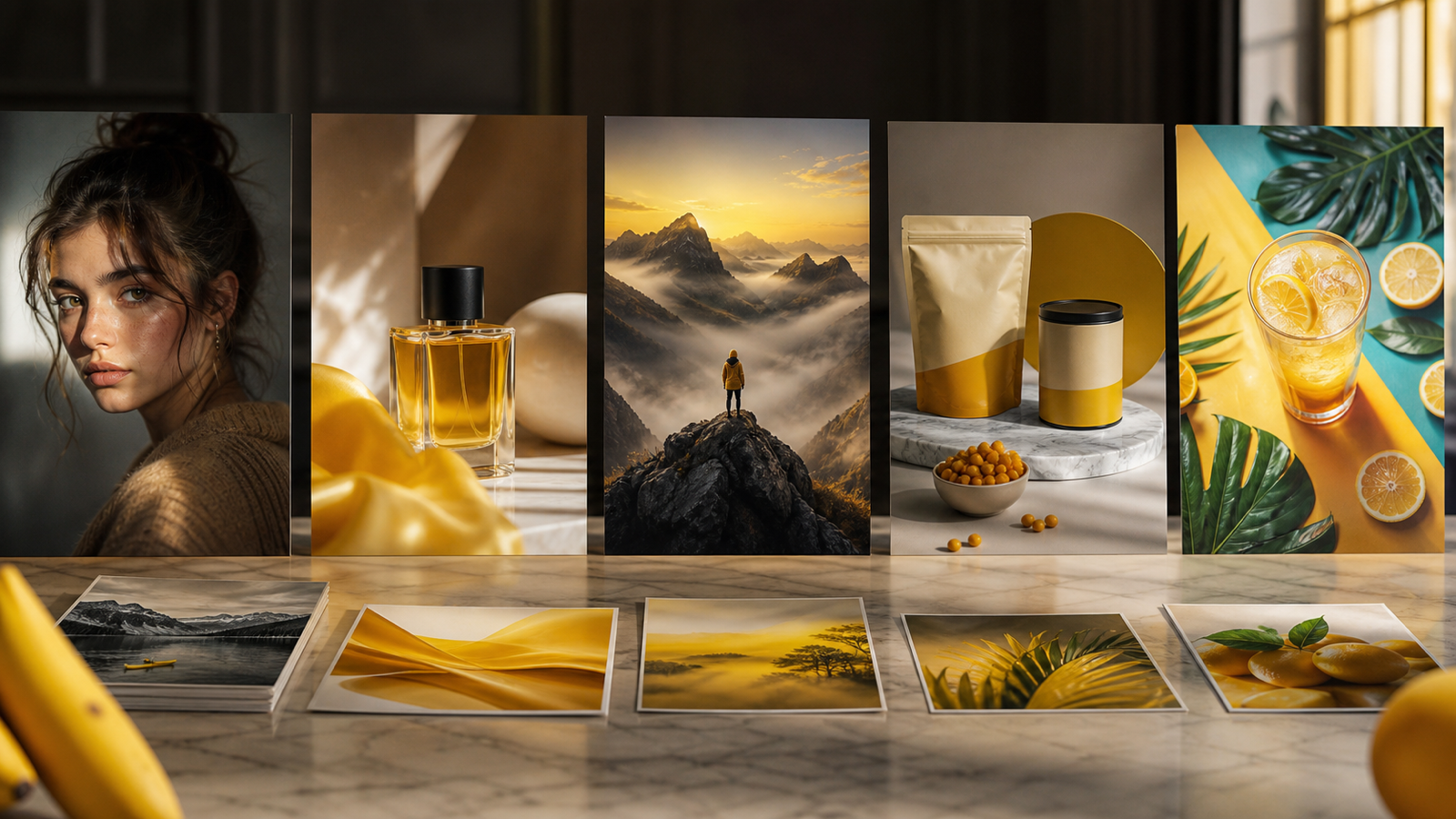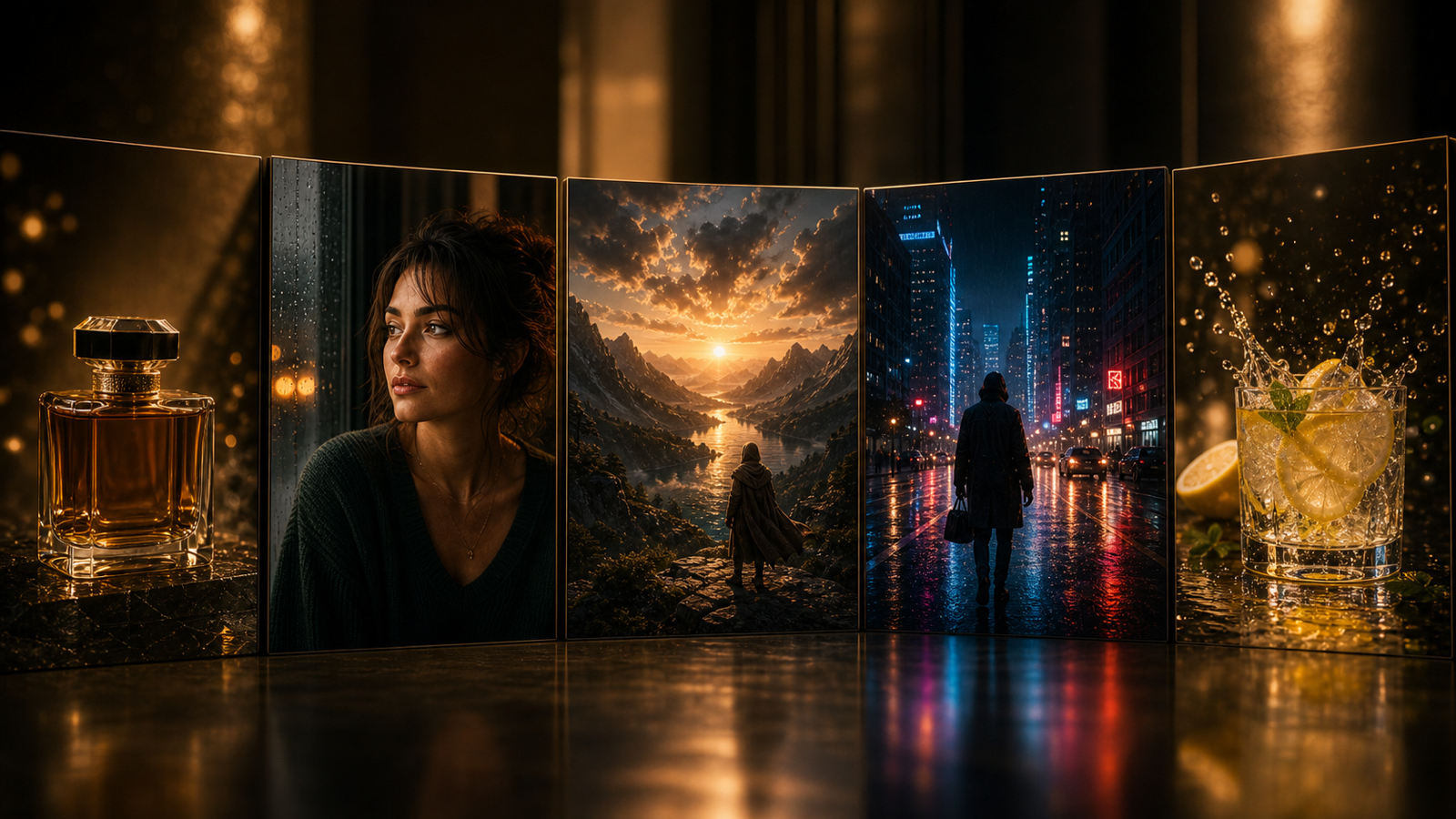
The best free Grok Imagine 1.5 video-creation tools do not all solve the same problem. Grok Image Generator is the practical free starting point for creating still images and motion-ready key frames, while Flaq AI, Flyne AI, VideoWeb AI, and SeeVido AI provide different routes for animating an approved image with movement, camera direction, ambience, dialogue, music, and sound effects.
The strongest method is a two-stage workflow: approve the still frame first, then animate it in short, controlled passes. This guide compares the leading browser and API options, explains what “free” may actually mean, and includes prompts for product videos, portraits, fashion clips, UGC ads, posters, and cinematic scenes.

Quick Verdict: Which Grok Imagine 1.5 Tool Fits Your Workflow?
Start with the part of the workflow you need to repeat. A casual creator needs a clean key frame and a simple browser tool; a developer needs an endpoint, task status, predictable parameters, and cost tracking. No platform is automatically best for both.
| Need | Recommended starting point | Why it fits |
|---|---|---|
| Free still-image concepts and key frames | Grok Image Generator | Browser-based image creation positioned as free and no-signup |
| API access and automation | Flaq AI Grok Imagine 1.5 API | Reference-image input, API examples, task submission, polling, duration, and resolution controls |
| Creator-focused model workspace | Flyne AI Grok Imagine 1.5 | Visual image-to-video workflow with motion, audio, ratio, resolution, and duration settings |
| Social and marketing videos | VideoWeb AI Grok Imagine 1.5 | Creator positioning for Shorts, Reels, TikTok, product clips, and UGC concepts |
| Straightforward browser testing | SeeVido AI Grok Imagine 1.5 | Simple starting-image, prompt, settings, and generation flow |
“Free” needs a careful reading. Grok Image Generator currently promotes free image creation without signup, but video platforms may offer only browser testing, introductory credits, or paid generation. Check signup requirements, free credits, model access, queue limits, export rules, and commercial terms on the live page before choosing a production workflow.

What Grok Imagine Video 1.5 Actually Does
Grok Imagine Video 1.5 is best understood as an image-to-video model. The creator supplies a starting image, describes how the subject and camera should move, and adds instructions for atmosphere and sound. A strong reference frame therefore carries more weight than an overloaded motion prompt.
In its official announcement, xAI says Video 1.5 improves motion, physics, audio, speech clarity, and generation speed. It also describes sound effects, ambience, and dialogue being generated in the same pass, and names the generally available API model grok-imagine-video-1.5. xAI’s workflow update additionally introduced Projects, parallel agents, and library search around Grok Imagine.
Those are first-party claims about xAI’s own model and services. They do not prove that every third-party host exposes the same settings, speed, audio behavior, or account terms. Generated speech may still be unclear, mistimed, or poorly lip-synced, so dialogue clips need human review.

Build the Key Frame Before You Animate It
The most reliable Grok Imagine 1.5 image-to-video workflow begins with a visually complete still. The image should already establish the subject, composition, product shape, clothing, lighting, and background. Motion prompts are better at directing change over time than repairing a weak starting frame.
Use Grok Image Generator as the preparation stage:
- Generate several still-image concepts in the intended aspect ratio.
- Choose the frame with the clearest face, hands, product geometry, and background.
- Remove unreadable text, false labels, accidental logos, and distracting artifacts.
- Refine or upscale the selected frame only if it improves usable detail.
- Upload the approved image to a dedicated Grok Imagine 1.5 video tool.
- Add one subject action, one camera move, environmental motion, and audio direction.
- Generate several short variations before increasing duration or complexity.
GrokImageGenerator.net explicitly states that it is independent and has no relationship with xAI. Its role in this article is free still-image ideation and key-frame preparation, not verified native Grok Imagine 1.5 video generation. Its Grok Imagine 1.5 guide follows the same handoff: create a clean image first, then animate it through a dedicated video service.

Best Free or Free-Trial Grok Imagine 1.5 Video Tools Compared
The right tool depends on whether you value code access, a visual workspace, social-video context, or a minimal browser flow. These recommendations are based on the live pages and intended workflows, not a claim that identical prompts have already produced an objective quality ranking.
1. Flaq AI: Best Grok Imagine 1.5 API for Automation
Flaq AI’s Grok Imagine 1.5 Image-to-Video API is the strongest fit for developers, agencies, SaaS teams, and batch content systems. Its page provides a reference-image field, a motion prompt, JavaScript, Python, and cURL examples, asynchronous submission, and task polling. The displayed model identifier is grok-imagine-v1.5-image-to-video.
At review time, Flaq listed 480p at $0.081 per second and 720p at $0.141 per second. Those are live third-party prices, not xAI prices, and they should be rechecked immediately before publication or budgeting. Teams should also verify supported duration values, rate limits, retries, moderation responses, file retention, and billing behavior.
Best for: automated social-video production, product-motion clips, ad variants, creative apps, and repeatable image animation.
2. Flyne AI: Best Creator-Focused Model Workspace
Flyne AI Grok Imagine 1.5 is suited to creators who prefer visual controls over API code. Its live page describes image-to-video generation, prompt-directed movement, native audio, multiple aspect ratios, 480p or 720p output, and durations from 1 to 15 seconds.
The page is especially relevant for portrait animation, product teasers, cinematic motion tests, and short marketing clips. However, confirm the displayed credit cost, free-credit availability, public-generation setting, download terms, and commercial-use policy before uploading client work.
Best for: creators comparing models, product teasers, character motion, and cinematic social clips.
3. VideoWeb AI: Best for Social and Marketing Video Workflows
VideoWeb AI Grok Imagine 1.5 frames the model around uploaded starting images, native audio, dialogue, ambience, sound effects, flexible ratios, 480p or 720p output, and 1-to-15-second clips. That makes it a practical match for TikTok, Reels, YouTube Shorts, UGC concepts, product videos, and campaign storyboards.
VideoWeb’s broader Image-to-Video Generator is also useful when a team wants to compare Grok Imagine with other video models. The trade-off is that model availability, credits, audio settings, and export conditions may differ by account or change over time.
Best for: social-media teams, advertisers, UGC marketers, and creators testing several video workflows in one platform.
4. SeeVido AI: Best Simple Browser-Based Workflow
SeeVido AI Grok Imagine 1.5 presents a direct start-frame, prompt, resolution, duration, and generation workflow. Its live page emphasizes image-to-video, native-audio direction, 480p and 720p options, and practical tests for products, portraits, social clips, pitch visuals, and storyboards.
SeeVido is the easiest recommendation for a beginner who wants to test a single approved image without designing an API pipeline. Before generating, check whether the selected model is active for the account, how many credits the clip costs, which durations are exposed, and whether outputs are public by default.
Best for: beginners, quick motion tests, product previews, pitch decks, and short creative experiments.

How to Compare Grok Imagine 1.5 Tools Fairly
A useful comparison holds the creative inputs constant. Use the same source image, prompt, duration, aspect ratio, and target resolution on each platform. Otherwise, a stronger key frame or easier prompt may be mistaken for a better model host.
Score each result against these practical criteria:
- Reference-image fidelity and facial consistency.
- Product shape, packaging, color, and label preservation.
- Natural body movement, ground contact, physical weight, and momentum.
- Cloth, hair, smoke, rain, steam, reflection, and liquid behavior.
- Camera movement and scene stability.
- Prompt adherence and unwanted scene changes.
- Dialogue clarity, lip synchronization, ambience, music, and effects.
- Duration, resolution, ratio, latency, and download quality.
- Credits or per-second cost, retries, failed-task handling, and queue priority.
- Watermarks, privacy defaults, uploaded-image retention, and commercial-use terms.
For API testing, log the prompt, source-image hash, model identifier, duration, resolution, latency, status code, retry count, cost, output URL, and review score. For browser tests, use a simple spreadsheet with the same fields. The goal is not a vague “looks better” verdict; it is a repeatable decision based on your content.

Grok Imagine 1.5 Prompt Formula and Copy-to-Use Examples
A good image-to-video prompt protects the approved frame before adding motion. Keep the main action simple, specify the camera separately, and make audio direction concrete. If the source image contains a product or person, repeat the details that must remain stable.
Reusable formula
Use the uploaded image as the exact starting frame. Preserve [face, product, clothing, colors, composition, lighting, and background]. Subject action: [one clear action]. Camera: [camera movement]. Environmental motion: [wind, rain, steam, smoke, reflections, or particles]. Audio: [dialogue, ambience, music, and effects]. Duration: [seconds]. Aspect ratio: [ratio]. Avoid [identity drift, altered product details, extra limbs, sudden cuts, unstable backgrounds, or unreadable text].
Copy-to-use prompts
Use the uploaded product image as the exact starting frame. Preserve the bottle shape, label, colors, materials, and lighting. Add a slow orbit camera, subtle mist, realistic reflections, and delicate glass sound effects.Animate the uploaded portrait into a six-second cinematic clip. Preserve the person’s face, hairstyle, clothing, expression, and background. Add a gentle camera push-in, natural blinking, subtle hair movement, and quiet room ambience.Create a vertical UGC product video from the uploaded image. The creator raises the product, smiles, and says “[dialogue].” Preserve the face and product packaging. Use handheld phone framing and natural indoor sound.Animate the uploaded fashion image. The model walks slowly toward the camera while the fabric responds naturally to the wind. Preserve the outfit, facial identity, colors, and location.Turn the uploaded coffee-product image into a short advertisement. Steam rises, sunlight moves across the table, and the camera slowly pushes toward the cup. Add quiet café ambience and a subtle ceramic sound.Animate the uploaded fantasy scene. The character remains still while the cape moves in the wind, distant clouds shift, embers float through the air, and the camera performs a slow cinematic arc.Create a six-second product reveal. Begin with the uploaded image, move the camera from an extreme close-up to a wider hero shot, preserve all packaging details, and synchronize one sound effect with the reveal.Animate the uploaded poster image without changing its design. Add only subtle parallax, moving light, atmospheric particles, and a slow camera push. Keep all text readable and stable.
Avoid copyrighted characters, celebrity likenesses, protected logos, copied artwork, or unsupported product claims. Generated dialogue and readable packaging still require close inspection before publication.

Free Access, Credits, Rights, and Production Cautions
Treat free access as an onboarding condition, not a permanent production guarantee. A page may be free to try while charging credits for final generation, higher resolution, longer clips, private outputs, or priority queues. Availability can also differ by account, region, and current capacity.
Verify these details on every live platform:
- Whether signup is required and whether free credits are available.
- Whether Grok Imagine 1.5 is selectable for free users.
- Credit cost or per-second price for each resolution.
- Maximum duration and supported aspect ratios.
- Native-audio controls and whether audio can be disabled.
- Queue priority, failed-generation refunds, and retry behavior.
- Download resolution, format, watermark status, and storage period.
- Public or private generation defaults and uploaded-image retention.
- Commercial-use rights, ownership terms, and attribution requirements.
- Regional availability, content moderation, and prohibited-use rules.
Do not assume that a third-party host is affiliated with xAI or exposes every official feature. For production, run a small paid test before scaling, build fallbacks for failed jobs, moderate prompts and outputs, and preserve the original source image outside the generation platform.

Frequently Asked Questions About Grok Imagine 1.5 Video Tools
Is Grok Imagine 1.5 mainly an image-to-video model?
Yes. xAI’s official workflow gives the model a starting image, a motion prompt, a duration, and a resolution. Some hosts may offer adjacent tools, but the strongest Grok Imagine Video 1.5 workflow starts with an approved still frame.
Can I use Grok Imagine 1.5 for free?
Free credits or browser testing may be available, but not every host is completely free. Grok Image Generator currently positions its still-image workflow as free and no-signup; dedicated video generation may require credits or per-second payment.
Does Grok Imagine 1.5 generate native audio?
xAI says Video 1.5 generates effects, ambience, and dialogue in the same pass. Third-party pages also advertise native audio, but actual speech clarity, synchronization, audio controls, and export behavior should be tested on the selected host.
Which tool is best for developers?
Flaq AI is the clearest API-oriented choice in this comparison because its live page provides an endpoint workflow, code examples, a model identifier, asynchronous task submission, polling, and displayed per-second pricing.
Which tool should a beginner try first?
Create several key frames with Grok Image Generator, approve the strongest image, then run one short test in Flyne AI, VideoWeb AI, or SeeVido AI. Keep the action and camera move simple so the result is easier to judge.

Final Recommendation
The best free Grok Imagine 1.5 video-creation tools form a pipeline rather than a single universal winner. Use Grok Image Generator for free still-image ideation and motion-ready key frames; choose Flaq AI for API automation, Flyne AI for a creator workspace, VideoWeb AI for social and marketing workflows, or SeeVido AI for a straightforward browser test.
Approve the image before adding motion, generate short variations, and compare tools with identical inputs. Before publishing or scaling, recheck credits, prices, duration, resolution, audio, watermarks, privacy, storage, and commercial terms on the live pages.
Related reading: Grok Imagine 1.5 guide with Flaq AI, Grok Imagine video workflow with VideoWeb AI, Grok image-to-video prompt guide, Flyne AI creator guide, and VideoWeb AI creator workflow.